Orders & delivery
Customers
How customers are added from orders, what the customer page shows, notes, delivery history by phone number, and customer accounts in the store.
Who it is for:OwnerManagerOrder agent
On this page
In EcomDesk a customer is known by their mobile number. You rarely need to add customers by hand: every order from the store, a landing page or a manual entry finds the customer by phone or adds them.
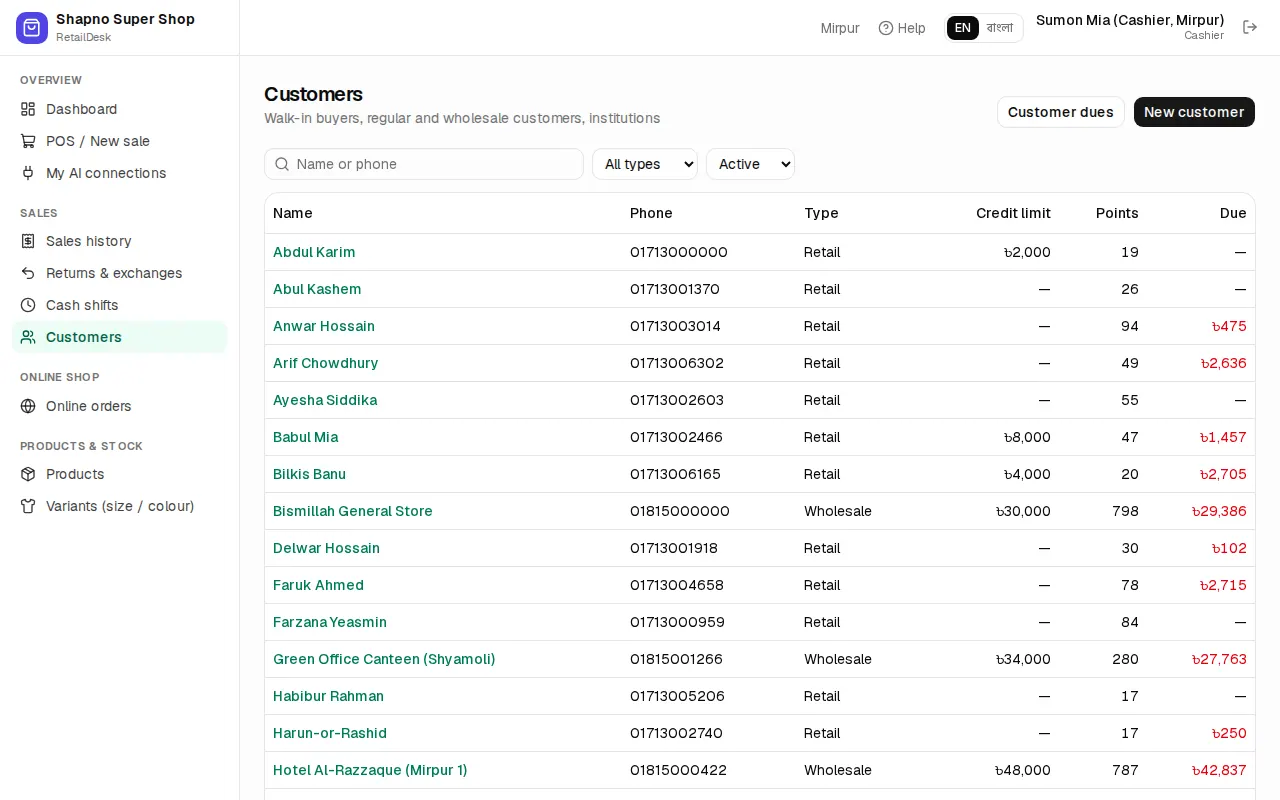
The customer list
Orders › Customers lists everyone with their phone and current due. Search by Name or phone. Click Add customer to add one by hand (for example a regular buyer from your Facebook page) with Name *, Mobile, Address and Notes.
The customer page
Open a customer to see:
- their invoices (every confirmed order makes one), with totals and returns;
- their Notes: add one for things the team should remember (prefers evening delivery, size XL);
- SMS drafts (not sent): messages an AI assistant drafted for this customer, to check and send (see AI assistants);
- any Current due, if you let a customer pay later.
Click Edit to change details; a manager can deactivate a customer.
Delivery history and risk
For each phone number EcomDesk counts how many of your orders were delivered, returned and cancelled. You see it:
- on the manual order form, as soon as you type the number (With your shop: … delivered · … returned · … cancelled);
- as the Risk badge on each order (see Fake-order risk).
Customer accounts in the store
Customers do not need an account to order. If they want one, they open My orders in your store, type their mobile number and the code sent by SMS; no password is needed. There they see their orders and tracking. Anyone can also use Track your order with the order number and mobile number.