Your online store
Checkout and delivery settings
Open the store, set delivery fees (inside Dhaka, sub-Dhaka, outside Dhaka, per area, free above), minimum order, cash on delivery, bKash / Nagad send-money and online payment with SSLCommerz, bKash or Nagad.
Who it is for:Owner
On this page
How customers pay and what delivery costs are set in two places: Online store › Checkout & delivery (delivery, cash on delivery, send-money numbers) and Admin › Online payments (payment gateways). Both are owner-only.
Open the store
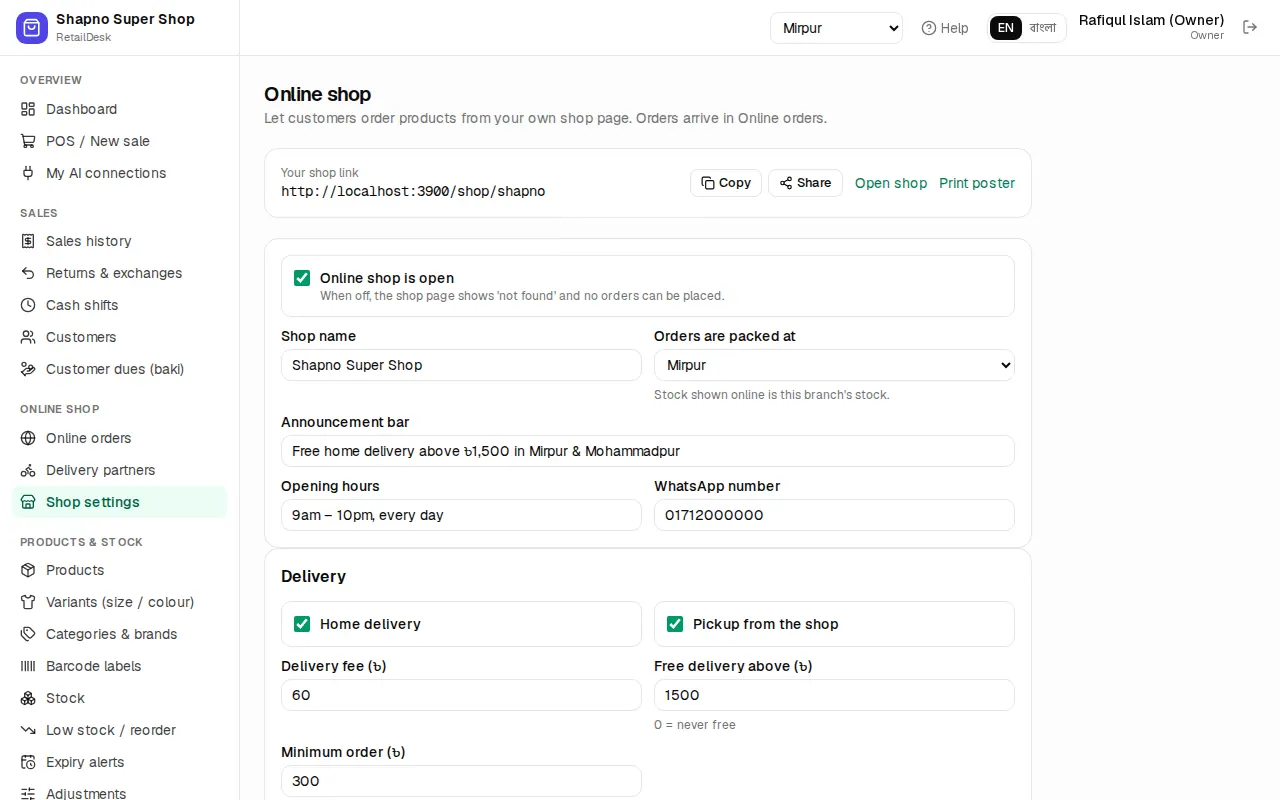
- Tick Online shop is open. While it is off, the store page shows not found and no orders can be placed.
- Check the Shop name and Orders are packed at: the warehouse whose stock the store sells.
- Optional: Announcement bar, Opening hours (for example 9am – 11pm, every day) and a WhatsApp number for the order button.
- Click Save shop settings.
At the top, Your shop link has a copy button, Open shop and Print poster (a QR poster for your stall, parcels or a fair).
Delivery fees
Tick Home delivery and/or Pickup from the shop, then set:
- Delivery fee (৳): the default fee.
- Free delivery above (৳): 0 = never free. The cart tells the customer Add ৳… more for free delivery.
- Minimum order (৳): 0 = no minimum.
- Delivery areas: click Add area to give a named area its own fee (for example Dhanmondi ৳60).
Zones by district. At checkout the customer picks their district and thana / upazila. Bangladeshi couriers charge by three zones, and EcomDesk knows them: inside Dhaka (Dhaka city thanas), sub-Dhaka (Savar, Ashulia, Keraniganj, Dohar, Nawabganj, Dhamrai, Gazipur, Narayanganj) and outside Dhaka (everywhere else). When your store has zone fees set, the fee follows the customer's district. A matching Delivery area always wins over the zone, and free-delivery rules and free-delivery coupons always win over both.
Set the three zone fees on Checkout & delivery: Inside Dhaka city (৳), Dhaka suburbs (৳) and Outside Dhaka (৳) (new stores start at ৳70 / ৳100 / ৳130). Delivery fee (৳) is only used when no district is chosen.
Cash on delivery and send-money
- Tick Cash on delivery / pay at pickup. Most Bangladeshi customers choose it; the courier collects the cash and pays you later (see Courier COD money).
- bKash merchant / personal number and Nagad number: customers send money to this number and type the transaction ID (TrxID) at checkout. Leave empty to hide the option. Your team checks the TrxID before confirming the order (see Orders).
Offered at checkout now shows what customers will see.
Online payment: SSLCommerz, bKash, Nagad
Go to Admin › Online payments (or click Set up SSLCommerz, bKash and Nagad). If your plan does not include it you see Online payment collection is not part of your plan.
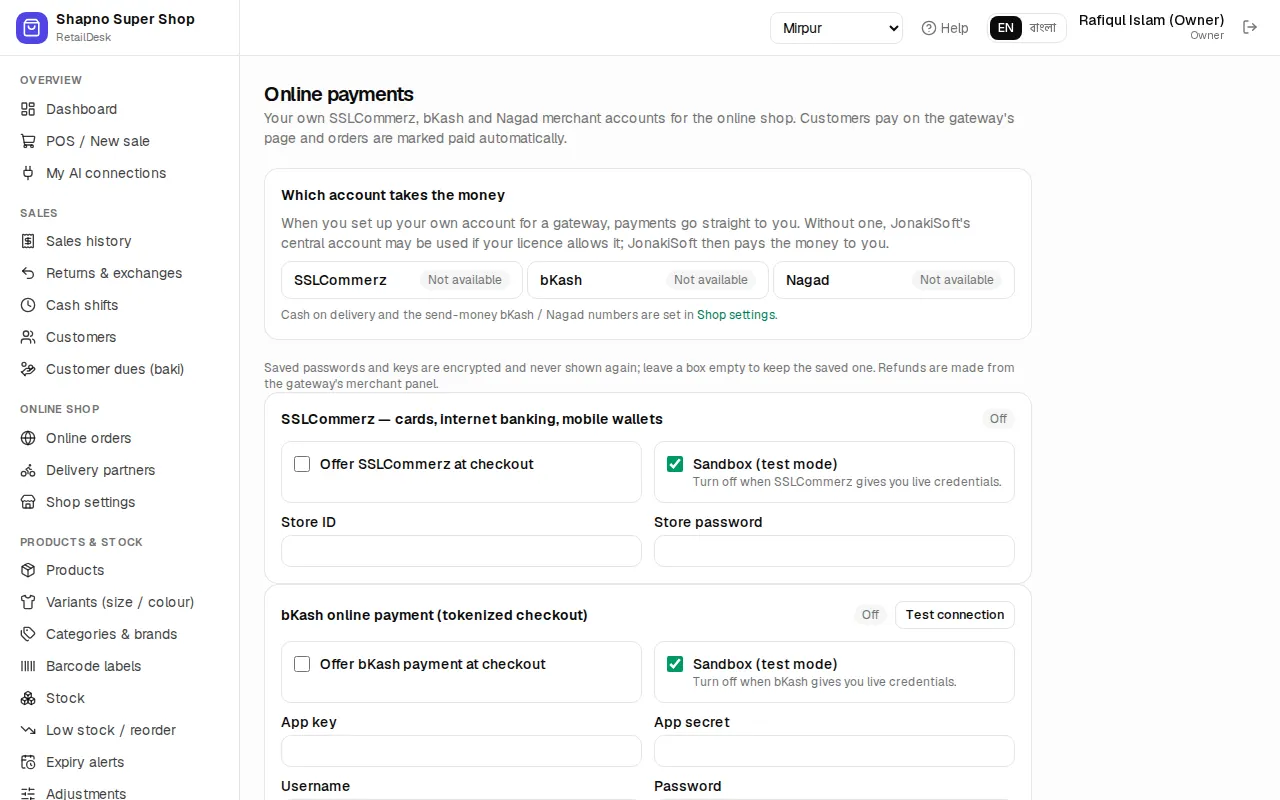
- Which account takes the money: Your account (your own merchant accounts) or JonakiSoft central (JonakiSoft collects and settles to you; the page then shows what was collected, the gateway fees, what was settled and what is payable).
- For your own account, fill in the gateway you have:
- SSLCommerz — cards, internet banking, mobile wallets: Store ID and Store password, then tick Offer SSLCommerz at checkout.
- bKash online payment (tokenized checkout): App key, App secret, Username and Password, then tick Offer bKash payment at checkout.
- Nagad online payment (merchant checkout): Merchant ID, Merchant number, Merchant private key and Nagad public key, then tick Offer Nagad payment at checkout.
- Keep Sandbox (test mode) ticked while you test, and untick it to go live.
- Use the test button, then Save payment settings.
The customer then sees Place order & pay at checkout. If a payment fails, the order waits as unpaid; your team can Switch to COD on the order.
What the customer sees
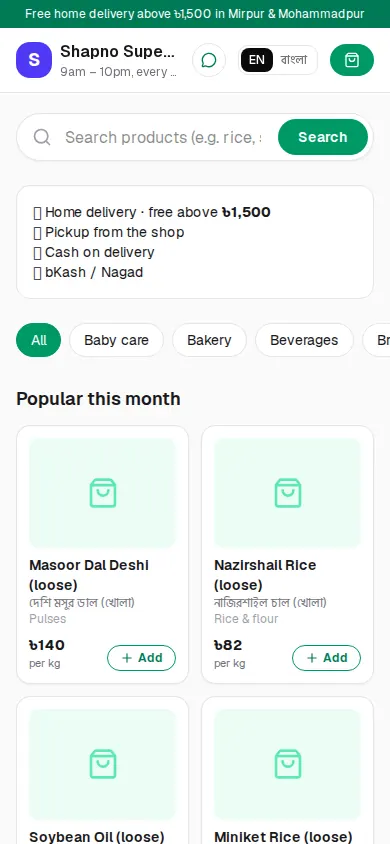
The checkout is one page: name, mobile number, district and thana / upazila, address, delivery or pickup, a Coupon code box, the payment choice and Confirm order. The customer is told We call or message to confirm your order. You'll get an SMS with a tracking link. Customers can also sign in to My orders with a code sent by SMS, without a password, or order as a guest.