Orders & delivery
Orders
The order list and its tabs, confirming an order by phone, entering Messenger / WhatsApp / phone orders by hand, fake-order risk and blocked numbers, invoices and labels.
Who it is for:OwnerManagerOrder agentPacker
On this page
Every order, from your store, a landing page or a chat, lands in Orders › Orders. Order agents confirm and enter orders; packers pack and hand them to the courier; managers can do both and handle cancellations and returns.
The order list
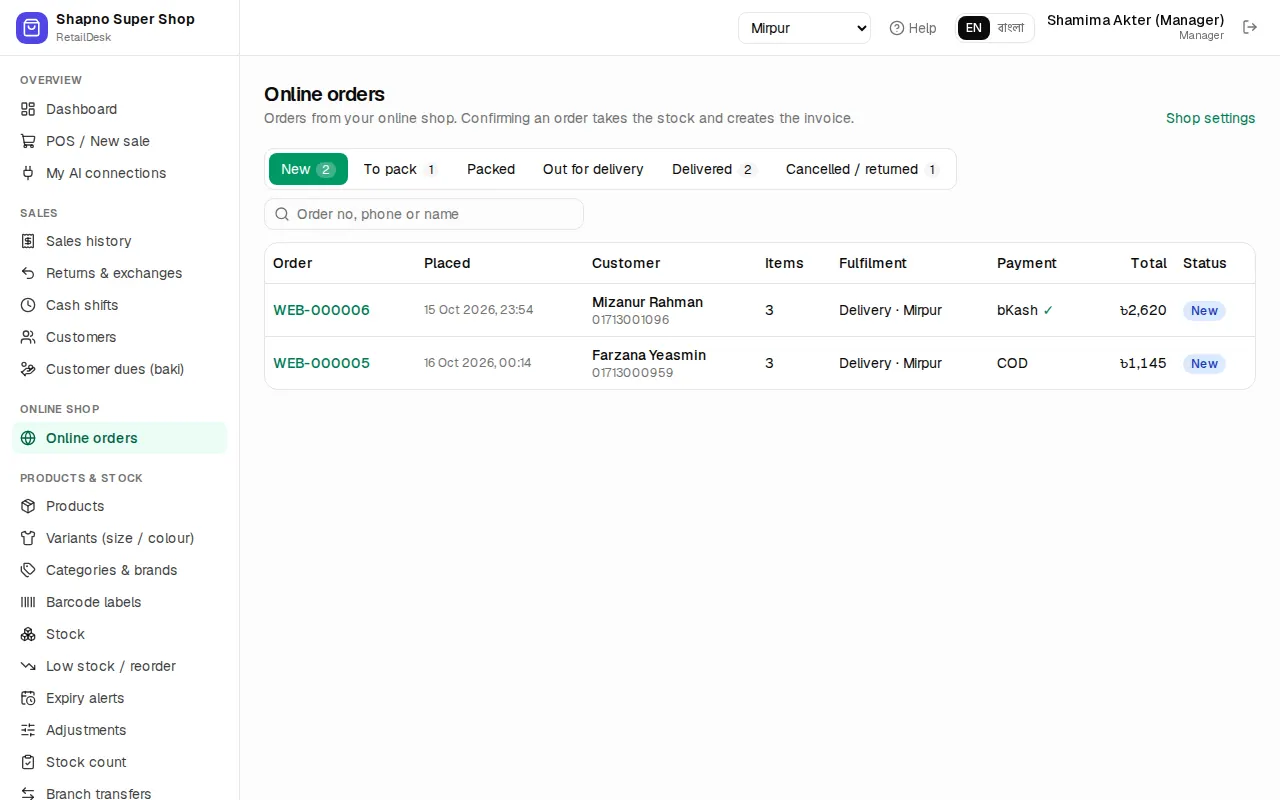
The tabs follow an order's life:
| Tab | What is in it |
|---|---|
| New | Just placed or under review. Call the customer and confirm. |
| To pack | Confirmed: the invoice is made and the stock is taken. |
| Packed | Ready for the courier. |
| Out for delivery | With the courier or your rider. |
| Delivered | The customer received it. |
| Cancelled / returned | Cancelled before delivery, or refused and returned. |
Search by Order no, phone or name. Filter by Source (Website, Landing page, Manual, Messenger, WhatsApp, Phone call, Instagram), District, Courier, Agent (Assigned to me, Not assigned), Risk and dates.
Keep the page open: it checks for new orders every 20 seconds, beeps and shows New online order ….
Bulk actions. Tick orders (or Select all) to Confirm them, Mark packed, Print invoices or Print labels in one go.
Handle an order step by step
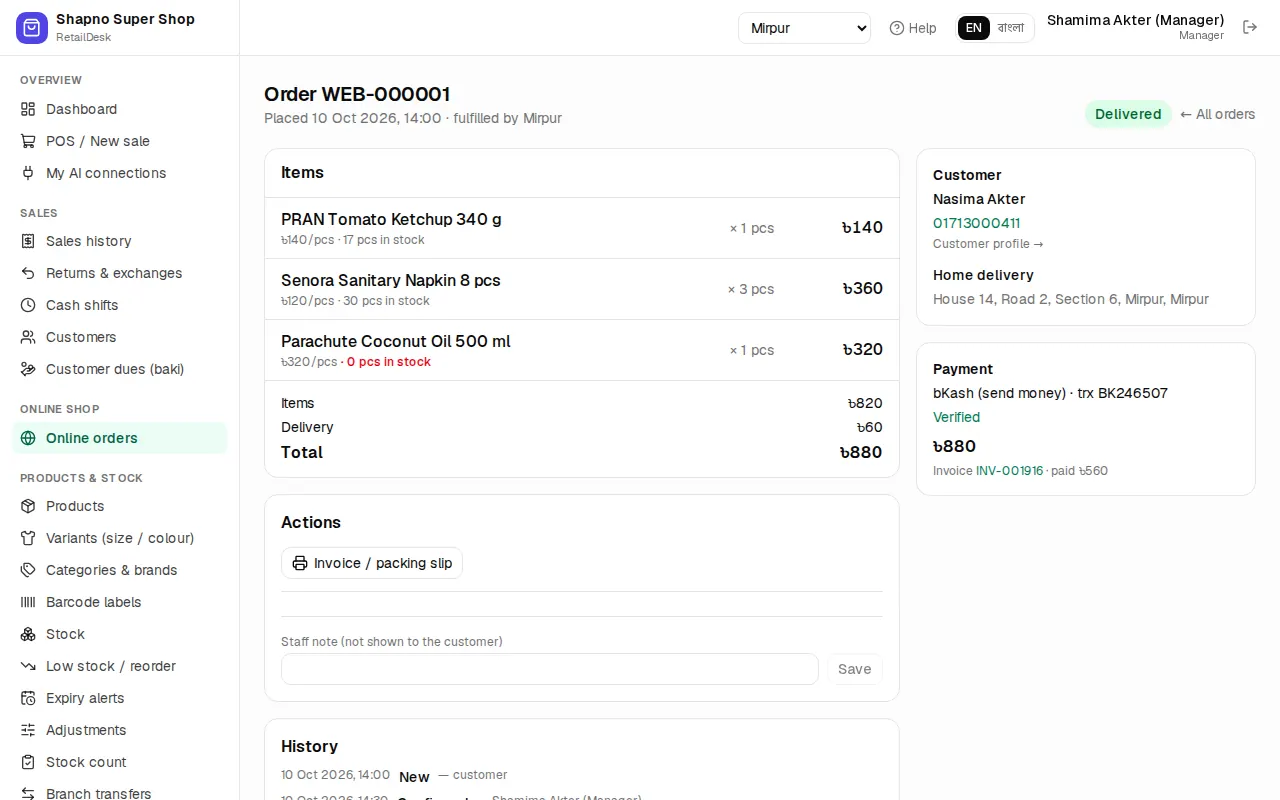
- Review. Open the order and click Start review so others know you are on it. While it is new you can change quantities, replace a product (pick another size / colour), add a product, give a Discount (৳) or change the Delivery fee (৳), then Save items.
- Call to confirm. Click Call (or WhatsApp) and check the name, address, size and that the customer really wants it. This one call stops most fake orders and refused parcels.
- Confirm. Click Confirm order. This makes the invoice and takes the stock. If something is short you are asked Try to confirm anyway?
- Pack. Pick the items, print the Invoice / packing slip and click Mark packed (pickup orders: Ready for pickup).
- Send. Book the courier from the Courier box (see Couriers), or click Send out for delivery and type the Rider name and Rider phone for your own rider.
- Finish. Courier orders become Delivered by themselves when the courier reports it. For your own rider, click Delivered (pickup: Customer collected) and choose which cash account the money goes into.
Cancel order asks for a reason, and the customer sees it. Once an order is confirmed only a manager can cancel it (the invoice is voided). Use Staff note (not shown to the customer), Tags (comma separated) (for example vip, gift, exchange) and Assigned agent to work as a team.
Checking advance and online payments
The order shows how it is paid: collect ৳…, paid ৳…, or paid ৳…, needs checking.
- bKash / Nagad send-money: find the TrxID in your merchant app and click Mark verified. Wrong TrxID? Leave it unverified and call the customer.
- Online payment that never arrived: click Switch to COD.
Manual orders from Messenger, WhatsApp or phone
Most orders still come in chats. Enter them in Orders › New manual order so stock, couriers and reports stay right.
- Under Customer, type the Mobile number first. If the customer is known you see their name, last order and With your shop: … delivered · … returned · … cancelled.
- Fill in Name, District, Thana / upazila and Address (house, road, area).
- Choose where the Order came from (Messenger, WhatsApp, Phone call, Instagram…).
- Search product by name, SKU or barcode… and add the items; for a style, pick the size / colour the customer wants.
- Check the Delivery fee (৳) and Discount (৳). If the customer paid an advance, type Advance paid (৳) and the bKash transaction ID. The form shows the Cash to collect.
- Add a Note for the team (optional) and click Save & confirm (already confirmed in the chat) or Save as new (still to confirm).
Fake-order risk
Each order gets a Risk badge: Low risk, Medium risk or High risk. It is worked out from:
- your own history with that number (delivered, returned and cancelled orders);
- your Blocked numbers list (a blocked number is always high risk);
- if your plan includes the fraud check, how parcels to that number have gone across EcomDesk shops (only counts are used, never another shop's customer details).
Use it to decide whom to call first, and for high-risk orders ask for the delivery charge in advance before you confirm. Filter the list by Risk to find them.
Blocked numbers
On an order, click Block this number and write why (fake orders, refused parcels…). The order and the manual-order form then warn This number is blocked. Orders › Blocked numbers lists every blocked number with the Reason, who blocked it and when; add one with Mobile number, Reason and Block, or Unblock it.
Invoices and labels
- One order: Invoice / packing slip on the order page.
- Many orders: tick them in the list and click Print invoices or Print labels (parcel labels with the address, phone and the cash to collect).
- Courier labels come from the courier's own panel after booking.