Products & stock
Products and variants
Add products with photos, sizes and colours, fill in the online listing (description, compare-at price, weight, size chart, SEO) and organise categories and brands.
Who it is for:OwnerManagerContent editor
On this page
Products live in Products & stock › Products. A product with sizes and/or colours is a style with one variant per combination (for example Panjabi, M / Maroon); each variant has its own SKU, price and stock.
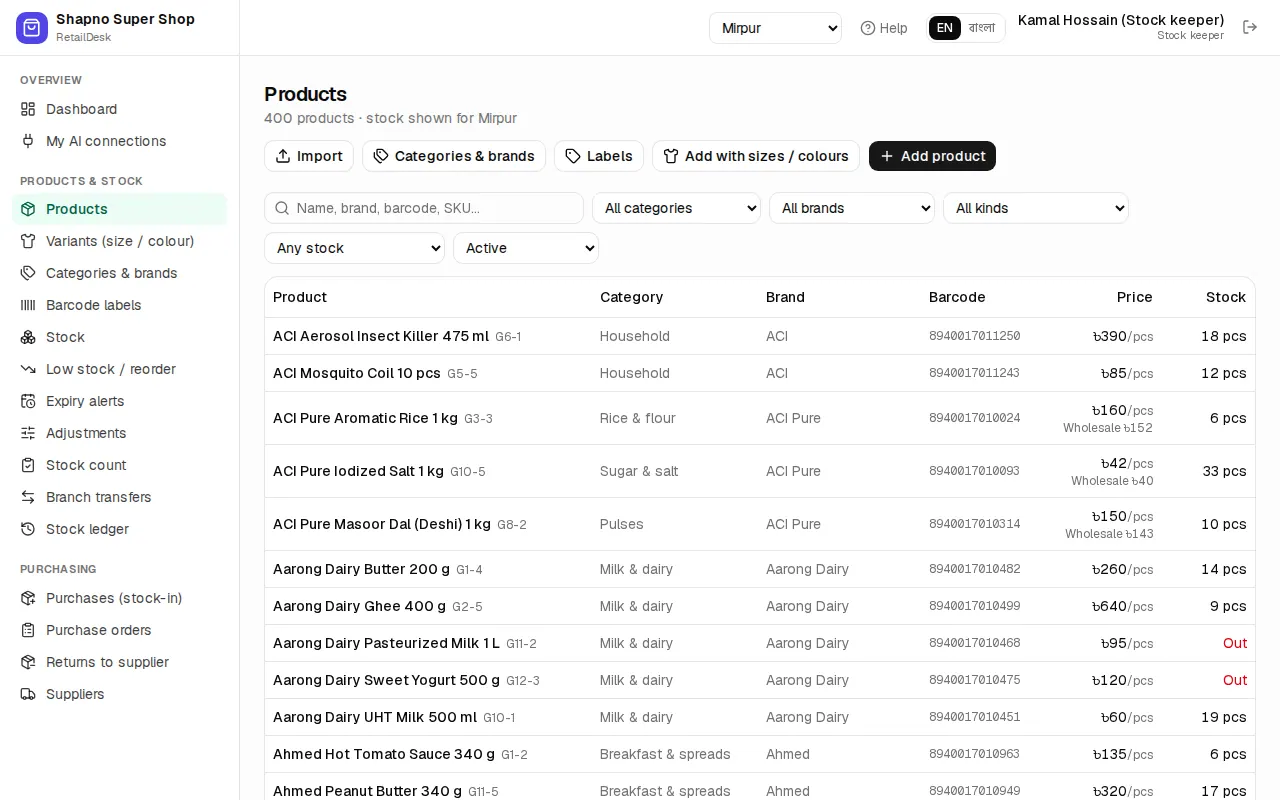
Add a simple product
Use this for a product with no sizes or colours.
- Click Add product.
- Fill in Name * and Name in Bangla, the Category and Brand (new ones are created automatically), and the Retail price (৳). Add the Cost so profit reports are right; only a manager or owner can change prices.
- Leave Show in the online shop ticked so customers can find and order it.
- Click Add product. Then open the product to add photos and the online details (see Online listing).
Products with sizes and colours
Use Variants (size / colour) or the Add with sizes / colours button.
- Type the Style name (for example Cotton panjabi*) and an optional Style / design code, Category and Brand.
- Under Sizes & colours set the First attribute (for example Size:
S, M, L, XL) and the Second attribute (for example Colour:Black, White, Navy), each as Values (comma separated). - Set the Prices for new variants: Retail price (৳) * and Cost (৳).
- Click Create variants. EcomDesk shows how many variants will be created, each with its own SKU, price and stock.
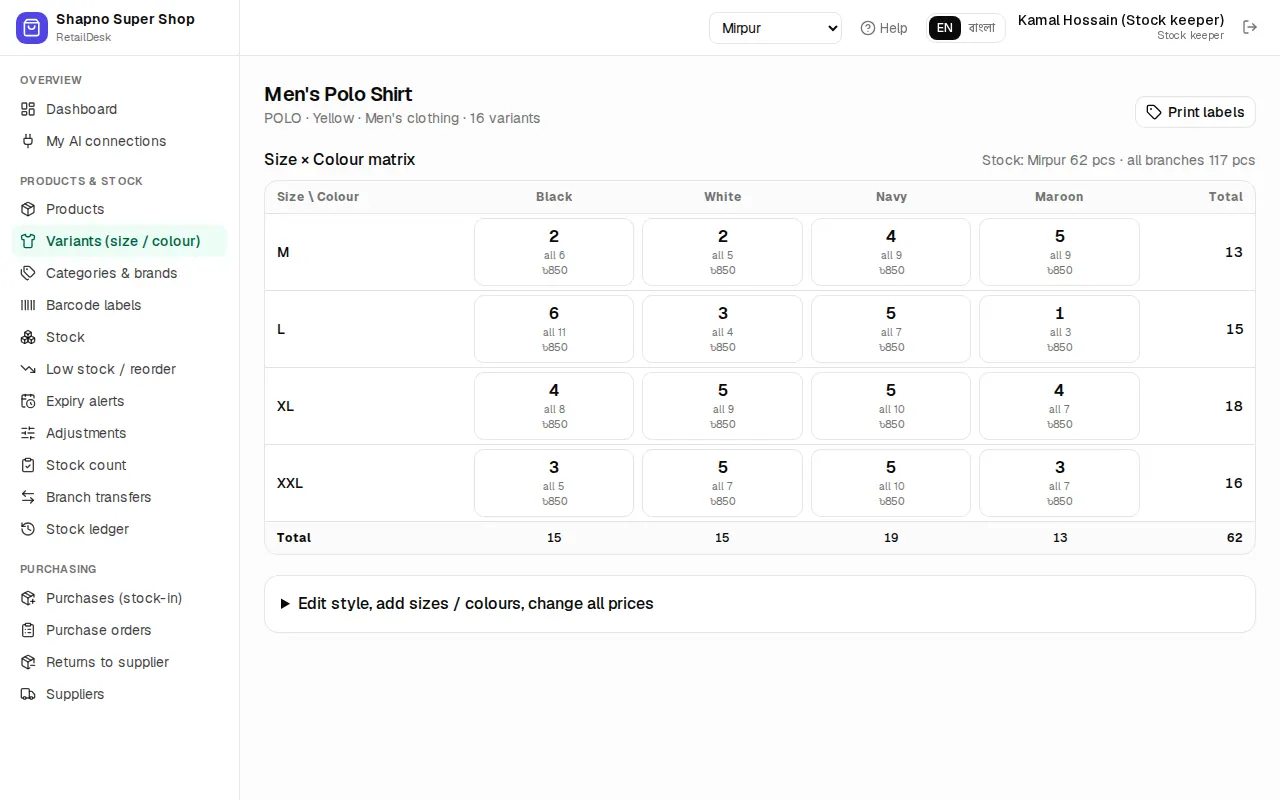
On the style page the matrix lists every variant. You can change a variant's price, switch it off (Active) or Apply these prices to every variant. Adding a new value later (a new colour) creates the new combinations; removing a value keeps its old SKUs, so deactivate them in the matrix instead.
Online listing: photos, description, SEO
On a product's edit page (or a style page) the Online listing box decides how it looks in your store.
- Photos: Add photos (JPEG, PNG, WebP or GIF, up to 5 MB each). The first is the Main photo; use Move up / Move down to reorder. Write Alt text (what the photo shows) for each. On a style, set the colour of a photo so it shows when the customer picks that colour, or leave All colours.
- Description (markdown): fabric, care, what is in the box. You can use lists such as
- Machine wash. - Compare-at price (৳): the crossed-out regular price for a sale. Products with one appear in On sale rows and collections.
- Weight (grams): used for the courier charge.
- Size chart (markdown table or image link): shown on the product page.
- Tags (for example
eid, cotton, new): used by automatic collections and search. - Featured: shows it in Featured product rows.
- Web address (slug), SEO title and SEO description for Google. The slug is made from the name when empty.
Click Save online listing, then View in shop to check it.
Categories and brands
Products & stock › Categories & brands keeps two lists.
- Categories can have a Parent category (for example Women › Saree). Each has a Name in Bangla, a Photo, a Web address (slug) and Sort order. Show in the shop menu puts it in your store's category menu; untick to keep it Hidden from menu.
- Brands: click New brand to add one; Rename or Delete later.
Find and import
Search by name, brand, barcode or SKU, and filter by category, brand or stock (In stock, At/below reorder level, Out of stock). To add many products at once use Import (a spreadsheet; see Admin › Import data).