Owner & settings
Staff and roles
Add your team, give each person a role (owner, manager, order agent, packer, content editor), reset passwords and see who did what.
Who it is for:Owner
Each person on your team signs in with their own mobile number and password and has one role. The role decides which menus they see and what they can do.
The roles
| Role | What they do |
|---|---|
| Owner | Everything, including settings, payments, couriers, domain, staff and the AI connector. |
| Manager | Runs the business day to day: orders, cancellations and returns, couriers and COD payouts, products and prices, stock, purchases, marketing, expenses and reports. Cannot change settings or staff. |
| Order agent | Sees and confirms orders, calls customers, enters manual orders from Messenger / WhatsApp / phone, blocks fake numbers, manages customers. Cannot pack, book couriers or see money reports. |
| Packer | Sees orders, marks them packed, prints invoices and labels and books couriers. Cannot confirm or edit orders. |
| Content editor | Products, photos and descriptions, store design, home page, collections, pages and menus, landing pages and reviews. Cannot see orders or money. |
Two more roles exist for the Showroom POS: Cashier (counter sales) and Stock keeper (stock and purchases). Users & roles has What each role can do with the full permission list.
Add staff
- Go to Admin › Users & roles and click Add user.
- Type the Full name, Mobile (login), an optional Email and a Password.
- Choose the Role and click save. Tell them the number and password; they can change the password after signing in.
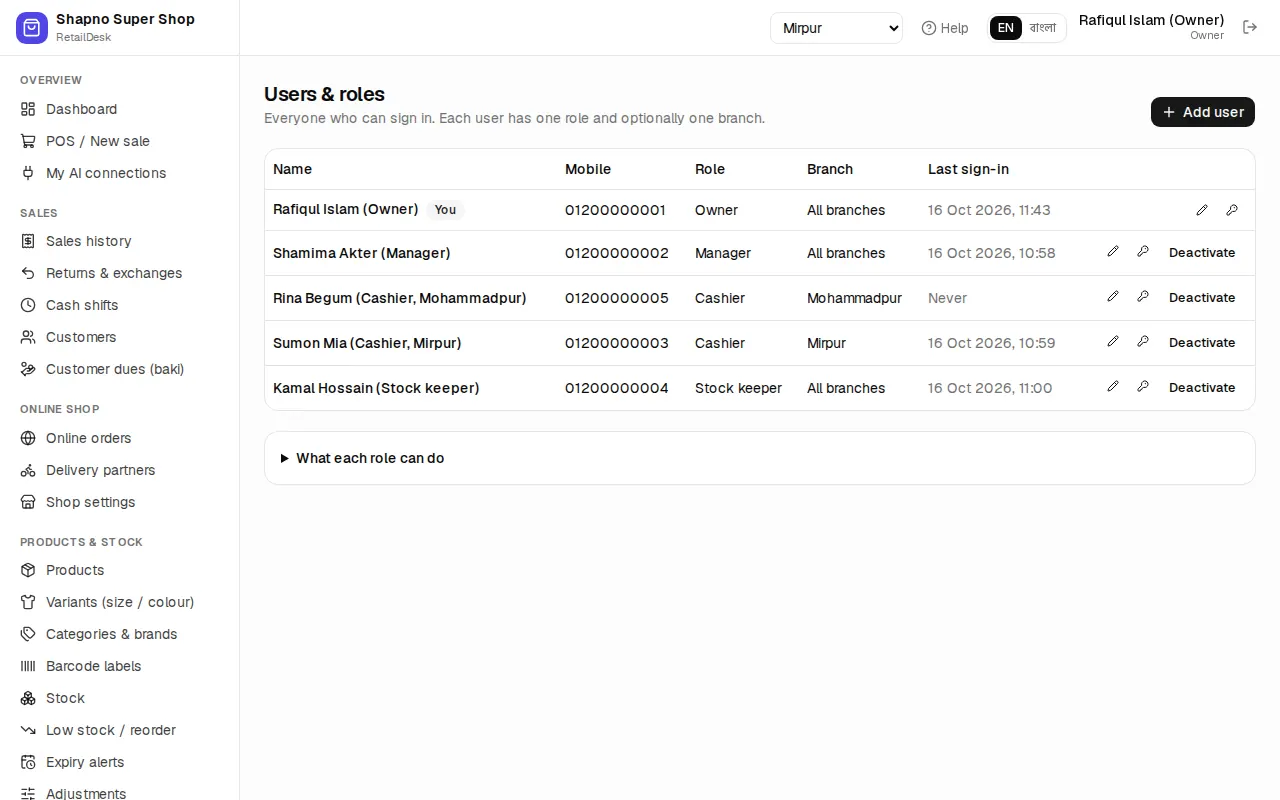
To change someone's role or reset a password, edit the user. Deactivate someone who leaves: they are signed out at once and their history stays.
Who did what: audit log
Admin › Audit log (owner and manager) records important actions: orders confirmed, cancelled or edited, price changes, stock adjustments, payouts, settings changes and sign-ins, with the person, time and the before / after values.
Shop settings
Admin › Settings holds the Shop profile (shop name, phone, email, address, logo, trade licence, VAT registration), default language, the return / exchange window, SMS settings and your Subscription (plan and renewal date). To upgrade or renew, contact support.