Getting started
Getting started
Open your EcomDesk account, look around the demo store, find your way in the back office and follow the first-steps checklist.
Who it is for:OwnerManagerOrder agentPackerContent editor
On this page
EcomDesk gives an online seller two things in one account: your own online store that customers order from, and a back office where your team confirms orders, books couriers, tracks the cash couriers collect, and runs coupons, landing pages and ads. It works in Bangla and English, on a computer or a phone.
Open your account
- Go to Start free trial (
/signup). - Fill in Shop name, Your name, Mobile number (you sign in with this) and a Password. Leave First branch / shop as it is if you have one warehouse.
- Click Send verification code. A 6-digit code arrives by SMS.
- Type the code and click Verify and create account. Your free trial starts straight away; no card is needed.
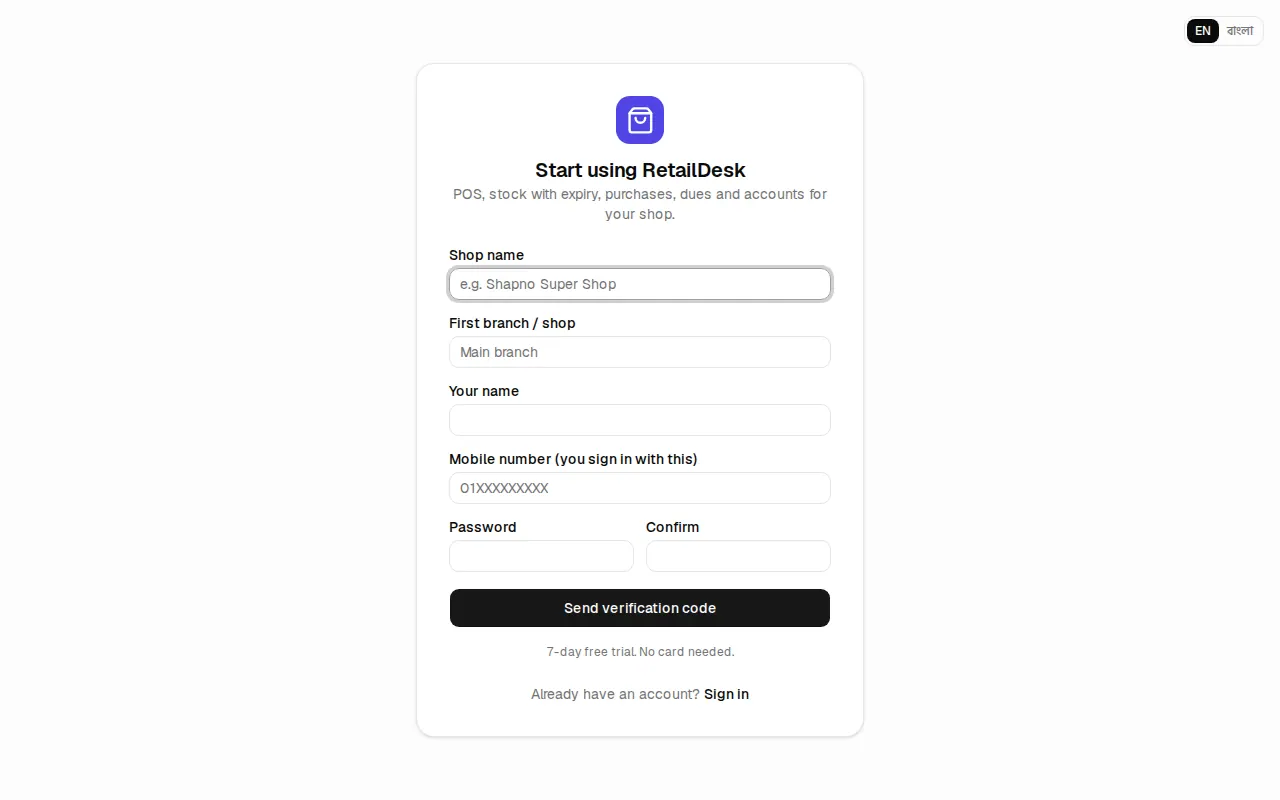
Your store gets an address like ecom.jonakisoft.com/shop/<your-shop>. You can connect your own domain later (see Own domain).
Sign in
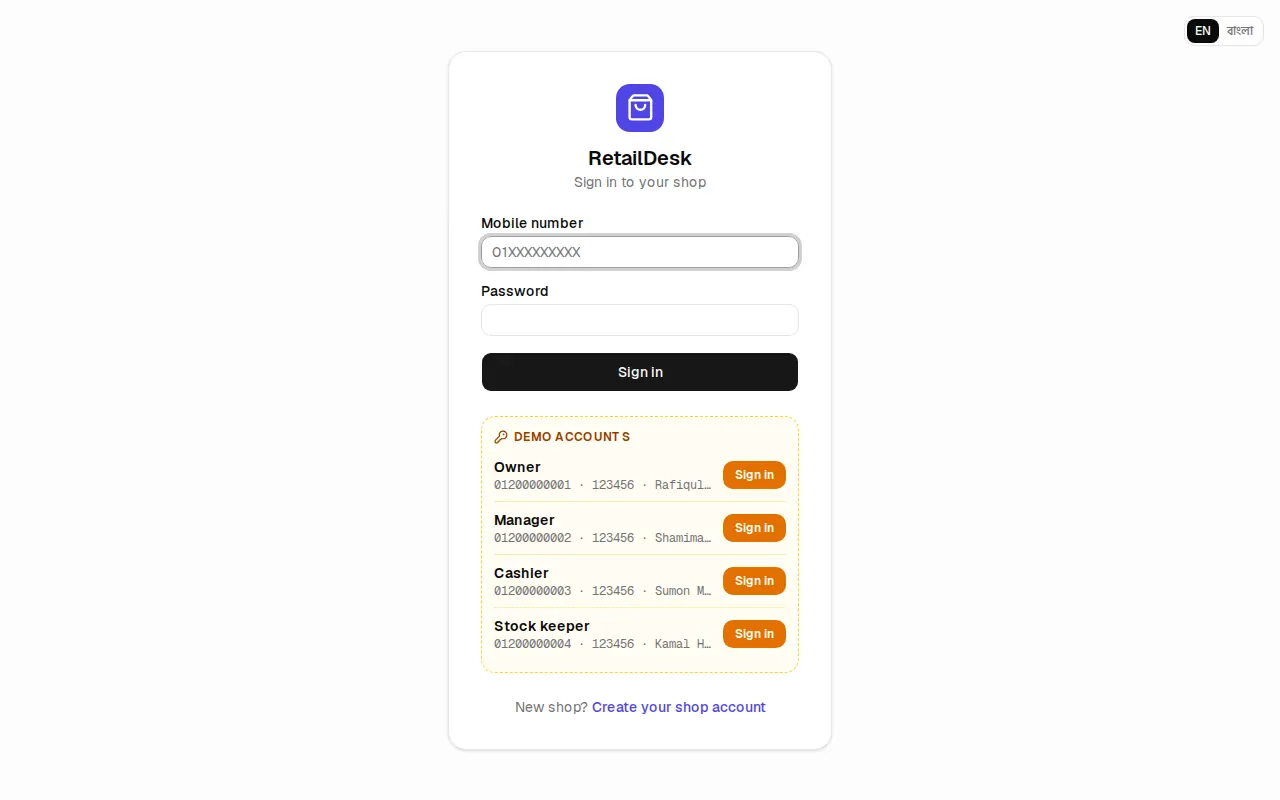
- Open EcomDesk and click Sign in.
- Type your Mobile number and Password and click Sign in.
Look at the demo store first
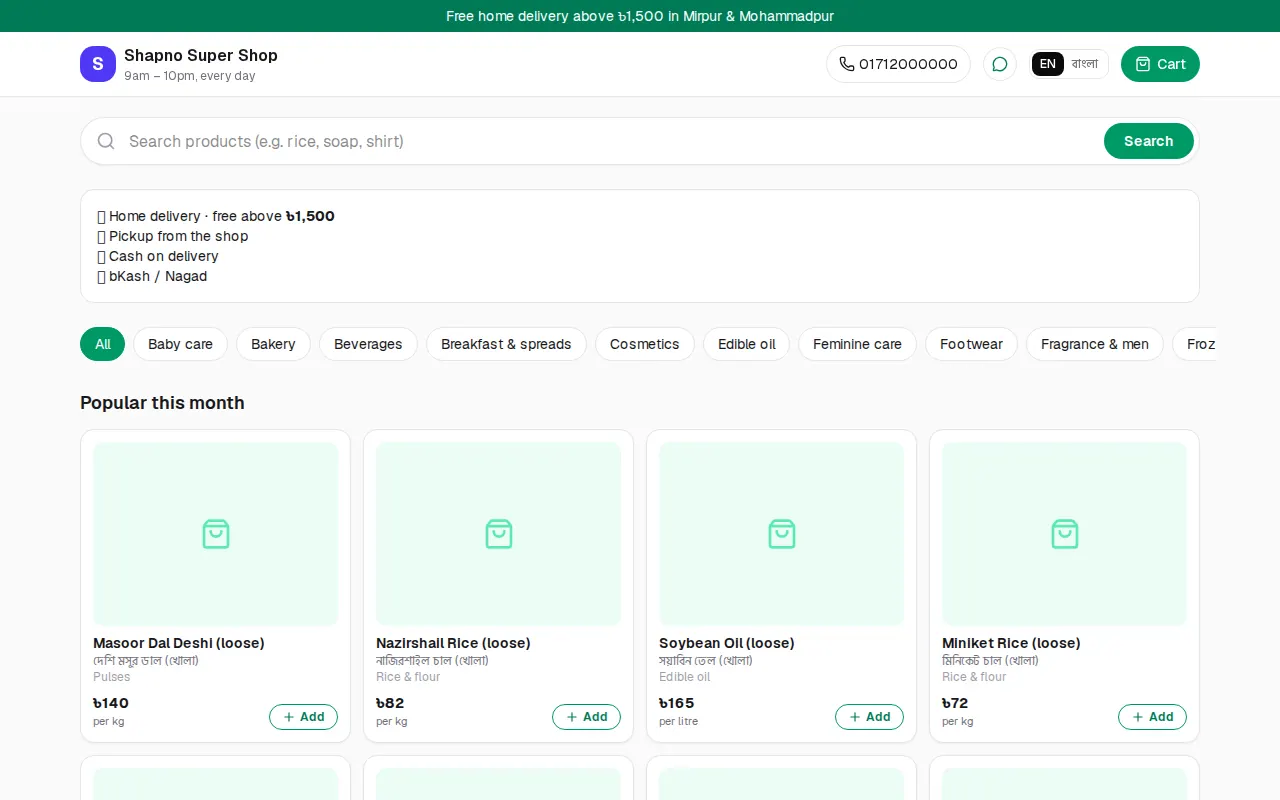
Before you build your own store, look at the demo store Nakshi Fashion House at /shop/nakshi. It shows a finished store with sizes and colours, collections, reviews and a working checkout. Use the public site's See a demo store and Try the back-office demo links to explore both sides.
Find your way around
- The sidebar on the left has the menus: Overview, Orders, Online store, Marketing, Products & stock, Purchasing, Finance, Reports and Admin. You only see the menus your role allows.
- The top bar has the language switch (বাংলা / English) and your account menu (change password, sign out).
- On a phone, open the menu with the ☰ button.
- The ? links and this guide (
/guide) open the chapter for the page you are on.
First-steps checklist
Work through these in order. Each step links to its chapter.
- Shop profile: check the shop name, phone and address in Admin › Settings.
- Look of the store: choose a theme, upload your logo, set your brand colour (Set up your store).
- Products: add your products with photos, sizes and colours (Products and variants).
- Home page: add a hero slider, a category grid and product rows (Home page).
- Pages: write your return policy, about us and privacy pages (Pages and menus).
- Delivery and payment: set the delivery fee, turn on cash on delivery, add your bKash / Nagad number (Checkout and delivery).
- Couriers: connect Pathao, Steadfast or RedX (Couriers).
- Open the store: tick Online shop is open in Online store › Checkout & delivery.
- Staff: add your order agents and packers (Staff and roles).
- Test order: place one order yourself from the store and walk it through to delivered (Orders).