Owner & settings
AI assistants (Claude, ChatGPT)
Connect Claude, ChatGPT or another AI app to your store so it can answer questions about orders, sales, stock and money from your data, and draft purchase orders and SMS, with every request logged.
Who it is for:OwnerManager
On this page
With the AI assistant connector (MCP), you can ask an AI app such as Claude or ChatGPT questions like "How many orders are still waiting to be confirmed?", "Which sizes of the cotton panjabi will run out this week?" or "What was my profit last month?". The AI reads the answer from your EcomDesk data. It works in Bangla and English.
What the AI can and can't do
- It only sees what your role can see. An order agent's AI app cannot see profit.
- It can read: sales and profit, expenses, online orders by status, stock per size and colour, low stock and slow-moving products, customers and their dues, suppliers, purchases and purchase orders.
- If the owner allows safe actions, it can also draft a purchase order, add a note to a customer and save an SMS draft. Drafts are never sent automatically: a person checks them in EcomDesk first.
- It can never confirm or cancel orders, book couriers, take payments, delete anything, send messages or change settings.
- Every request is logged.
Turn it on (owner)
Go to Admin › AI assistants (MCP). The badge shows whether it is Included in your plan.
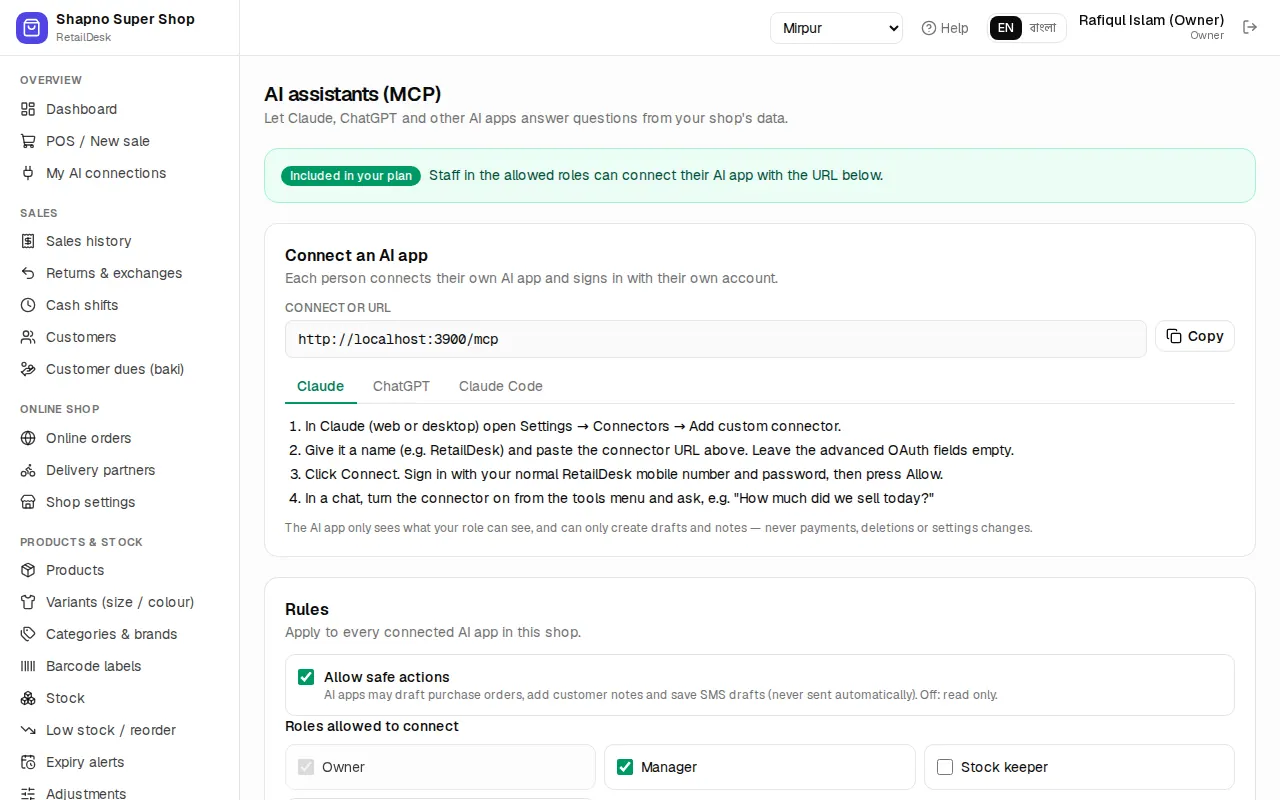
Under Rules:
- Allow safe actions: off means read only.
- Roles allowed to connect: the owner can always connect; by default managers can too. Tick other roles if you want them to use it.
Click Save. Connected apps lists who has connected which app, with Revoke, and Recent activity shows the last 50 requests (kept for 180 days).
Connect your AI app
Each person connects their own app and signs in with their own EcomDesk account. Copy the Connector URL shown on the page (it ends in /mcp), then:
- Claude (web or desktop): Settings → Connectors → Add custom connector, paste the URL and click Connect.
- ChatGPT: Settings → Apps & Connectors → Advanced, turn on Developer mode, then create a connector with the URL (authentication OAuth). Needs a ChatGPT plan that allows custom connectors.
- Claude Code: run the command shown on the page in a terminal, type
/mcpand choose Authenticate.
An EcomDesk page opens: … wants to access your EcomDesk account. Sign in if asked, choose the shop under Connect to, read what it may do and click Allow.
Ready-made prompts
Claude and other apps show three ready prompts from EcomDesk:
- Daily briefing: today's orders and sales, cash, low stock and dues, with three suggested actions.
- Reorder plan: what to buy this week, grouped by supplier. It asks you before drafting any purchase order.
- Customer dues follow-up: who owes the most and a polite Bangla SMS for each. Saved as drafts only after you confirm.
Drafted purchase orders appear in Purchasing › Purchase orders as Draft; SMS drafts appear on the customer page.
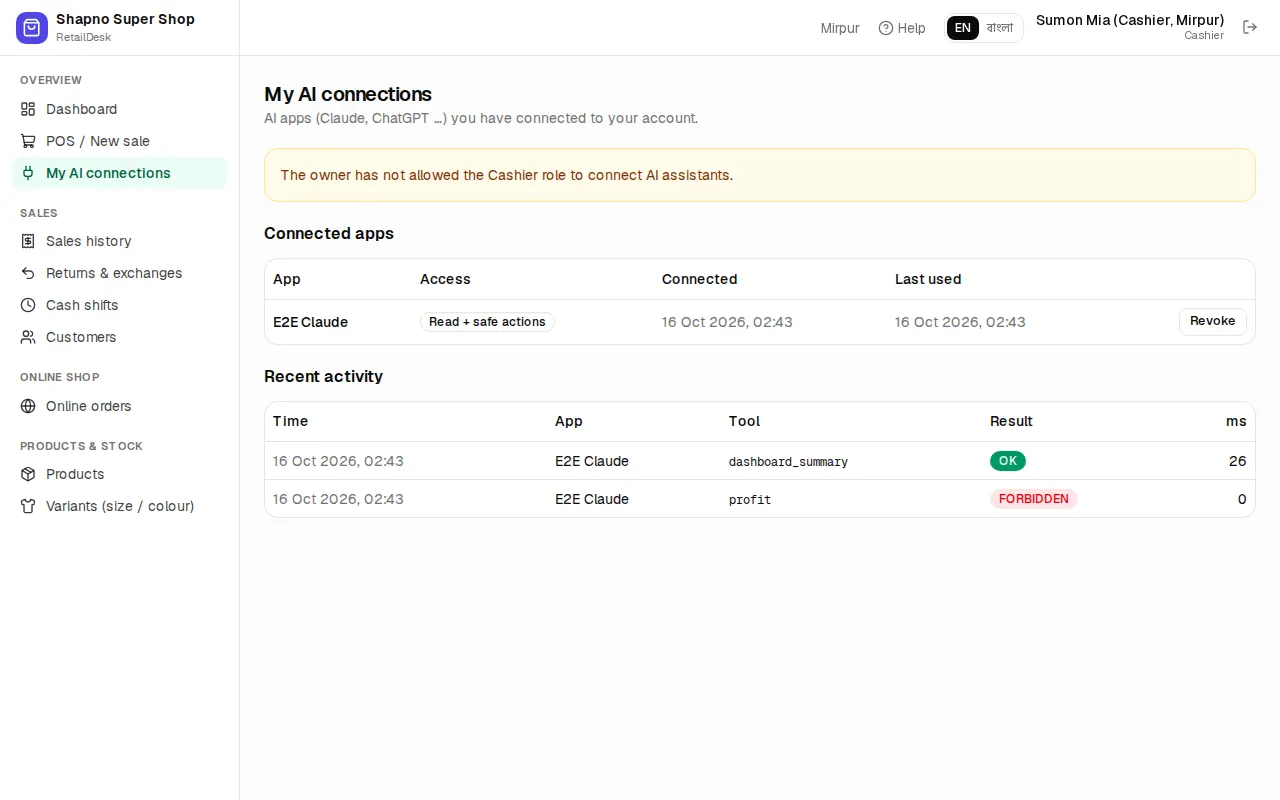
My AI connections
Overview › My AI connections shows the AI apps you have connected and when they were last used. Click Revoke to disconnect one, for example on a lost laptop.